EVENTS
Calendar
Regional Summit: Mid-West


Member Webinar
Innovative Strategies for Your Employee Health Benefits
Regional Summit: West Coast
BUILDING
Leadership
May the Great Conversation continue until God brings us to the dawn of the Eighth Day.
~ Bradley J. Birzer
EXCELLENCE
COMPAGNON CONSULTING
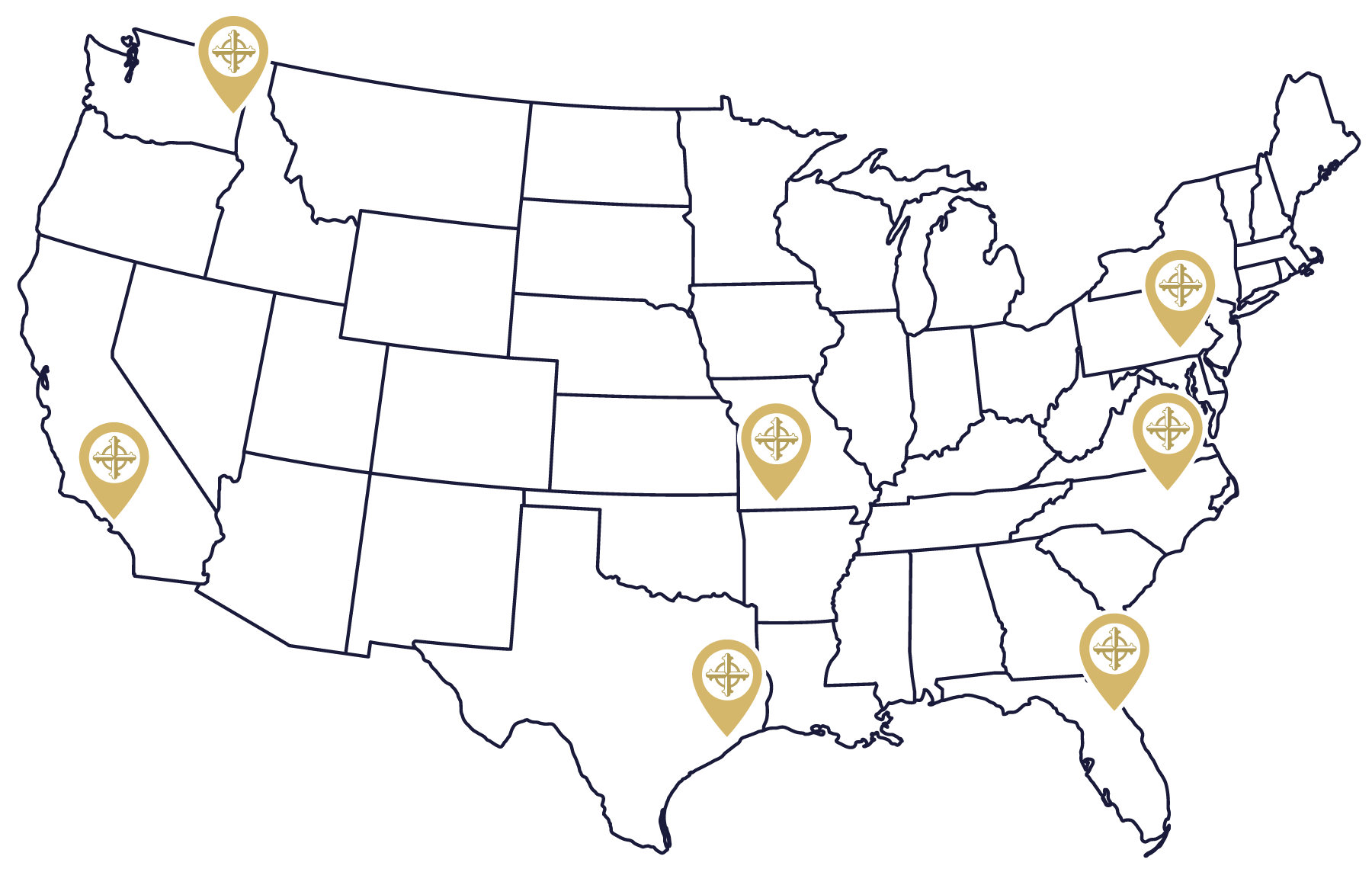
COMMUNITY
LEADERSHIP SUMMITS & GATHERINGS
KNOWLEDGE
LIVE WEBINAR SERIES & LIBRARY





ACCS Member Discounts
Many ACCS partners and business affiliates offer discounts and free resources to our membership.
ANSWERING THE QUESTION
Why Classical Christian?
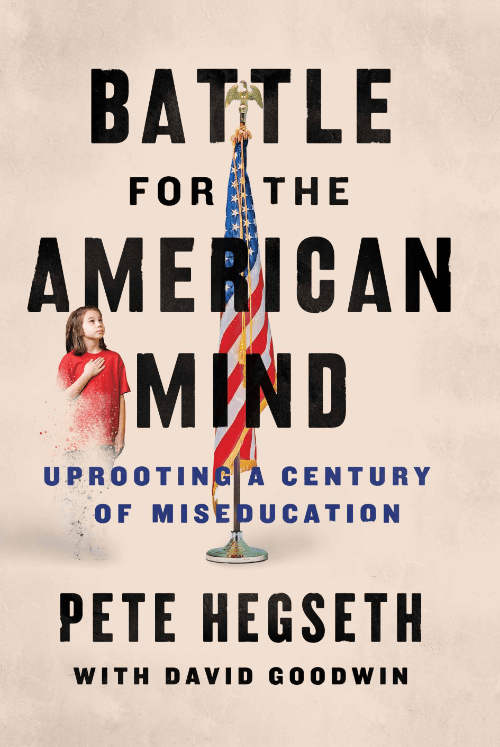
The #1 New York Times bestseller by Pete Hegseth and ACCS president David Goodwin answers the question “How did we get here?” and offers a solution for education in our country — classical Christian schools.


ACCS SCHOOLS
The Classical Difference
I have no greater joy than to hear that my children are walking in the truth.
~ 3 John 1:4




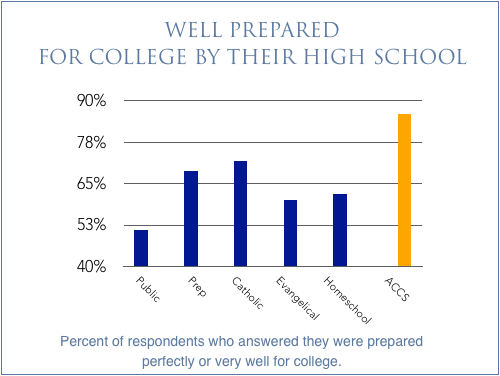
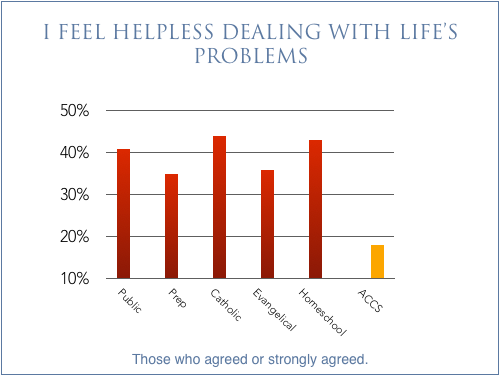
Well-prepared students are ready to make a difference in the world.

The classical Christian system nurtured Christian children for nearly 2000 years. And then, we forgot about it. In this short 17-minute documentary, learn why classical Christian education has seen the fastest, most consistent growth of any private school movement in the U.S.